

HOW TO: Use ChatGPT Voice
This new feature feels like what Siri should have always been; actually useful and good. Here's how to use it safely, and why you'll want to:

Did you know you can talk to ChatGPT out loud and it will talk back? There’s a little voice icon next to the message box; it’s been there for a while, and most people have never tapped it once. Seriously? You weren’t missing much—until now.
OpenAI rebuilt ChatGPT Voice on new models called GPT-Live, and for the first time, you can talk with it instead of at it. You can also interrupt it mid-answer, trail off, change your mind halfway through a sentence, go quiet to think, and basically talk to it like you talk to another person. Several times I’ve rambled, brain-dumped, or even forgotten that I was talking to it in the first place (read on to see my warning about that last part below).
I didn’t plan to trust, like, or even use this feature as much as I do. I’ve spent decades watching “just talk to it” go sideways. Siri mangles simple requests. Alexa once recorded a family’s private conversation and sent it to someone in their contacts. Contractors reviewing voice-assistant recordings have heard things nobody intended to share—and the list goes on.
Then I started using the new ChatGPT Voice — and I can’t believe how different and good it is. Not that I trust it 100% — because — tech. But I keep telling my friends that it’s exactly what Siri should have been this whole time — a useful, helpful, intelligent voice assistant that gets more things right than wrong.
But there’s still an open microphone involved, so let’s deal with that before we get too attached.
How to find it and turn it on

Open ChatGPT and look at the message box where you normally type. Tap the Voice icon on the right side. Don’t tap the little microphone that records a message and turns it into text; tap the Voice button to open a live conversation.
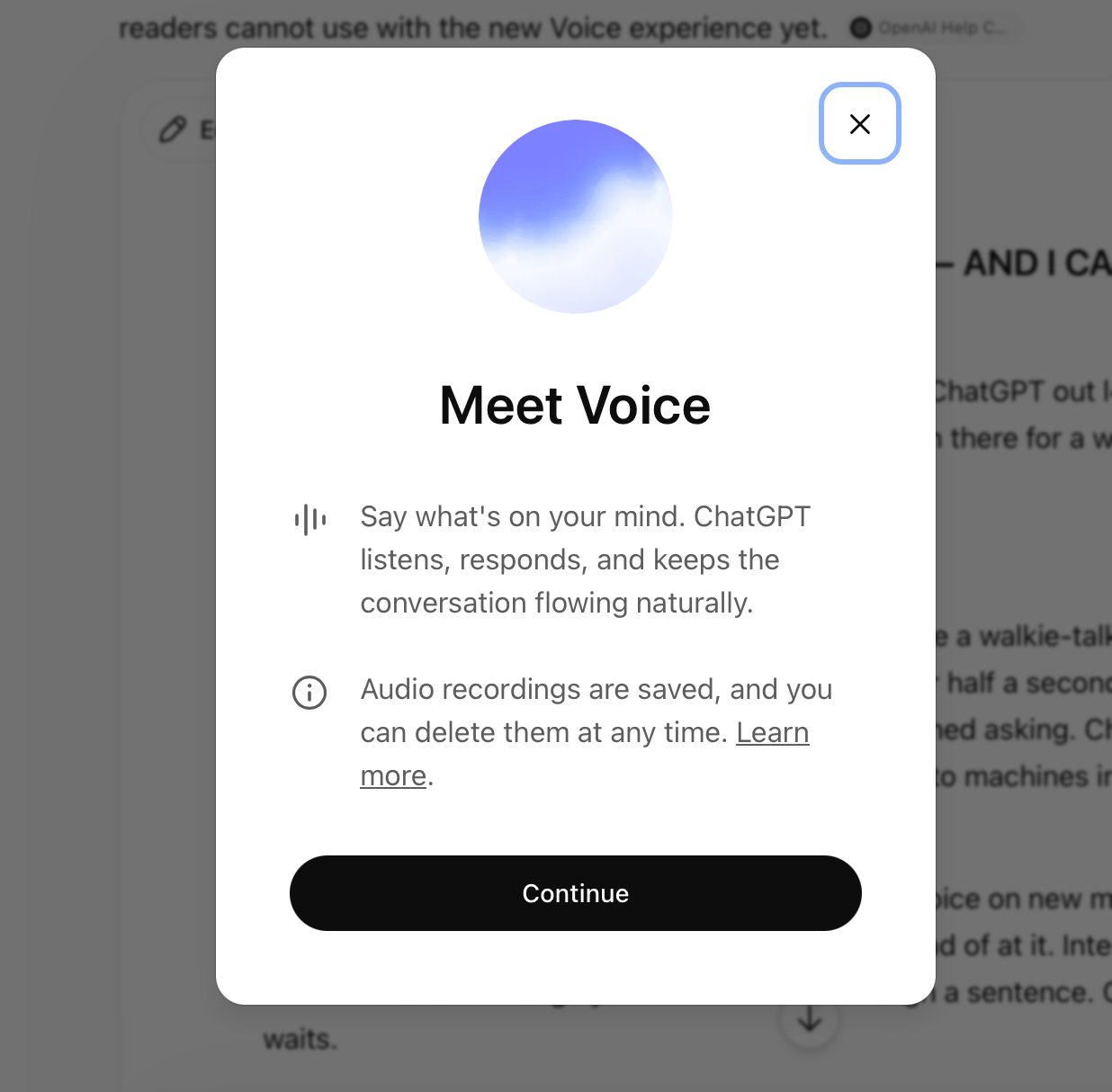
The first time you use it, ChatGPT asks for permission to use your microphone and lets you choose a voice. I’m using Vale because … British accent … of course. After that, you just start talking.
On a computer, you can use Voice in a regular chat at ChatGPT.com or in the ChatGPT desktop app.
Here’s where it gets confusing: Voice inside ChatGPT’s Work and Codex modes currently works only in the desktop app—not on the web. I discovered that while writing this story, the Voice button appeared in the Mac app but vanished from the exact same conversation in Safari. Same account and computer, just different ChatGPT window. (I’m still not 100% sure how I got it all to work, which happens more often in a tech reviewer’s life than most of us admit…)
To make sure you have the new version, go to Settings → Voice → Live. You should also see a small Live label at the top of the conversation after Voice opens. If Live doesn’t appear in your settings, update the ChatGPT app.
Live works in the ChatGPT iPhone and Android apps, in supported chats at ChatGPT.com and in the ChatGPT desktop app. Voice inside Work and Codex currently requires the desktop app. Live does not support video or screen sharing yet; eligible mobile subscribers can switch to Advanced Voice for those features under Settings → Voice.
Is it always listening?
I asked OpenAI the question that I’ve been trained by a decade of creepy assistants to ask. The answer, on the record: no. There is no wake word. The microphone turns on when you tap the voice button, and not before. In ChatGPT’s own words, it is not an always-on model — if you never tap in, it is not listening to you.
Then I did the very meta thing and asked the microphone about the microphone, grilling it about its own listening habits. It confirmed the tap-to-start part. Then I asked some tougher questions: How do I know when you’re listening? What can you hear? And what happens after I end the session?
Here are a few of the paraphrased responses:
While a session is open, the mic stays live; it can hear anyone else in the room, and it might even respond to them.
Its advice — its own, not mine — is to end the session before having a private conversation.
When I brought up the long history of assistants listening when they shouldn’t, it told me that once you close a session, it’s “not supposed to” keep listening in the background.
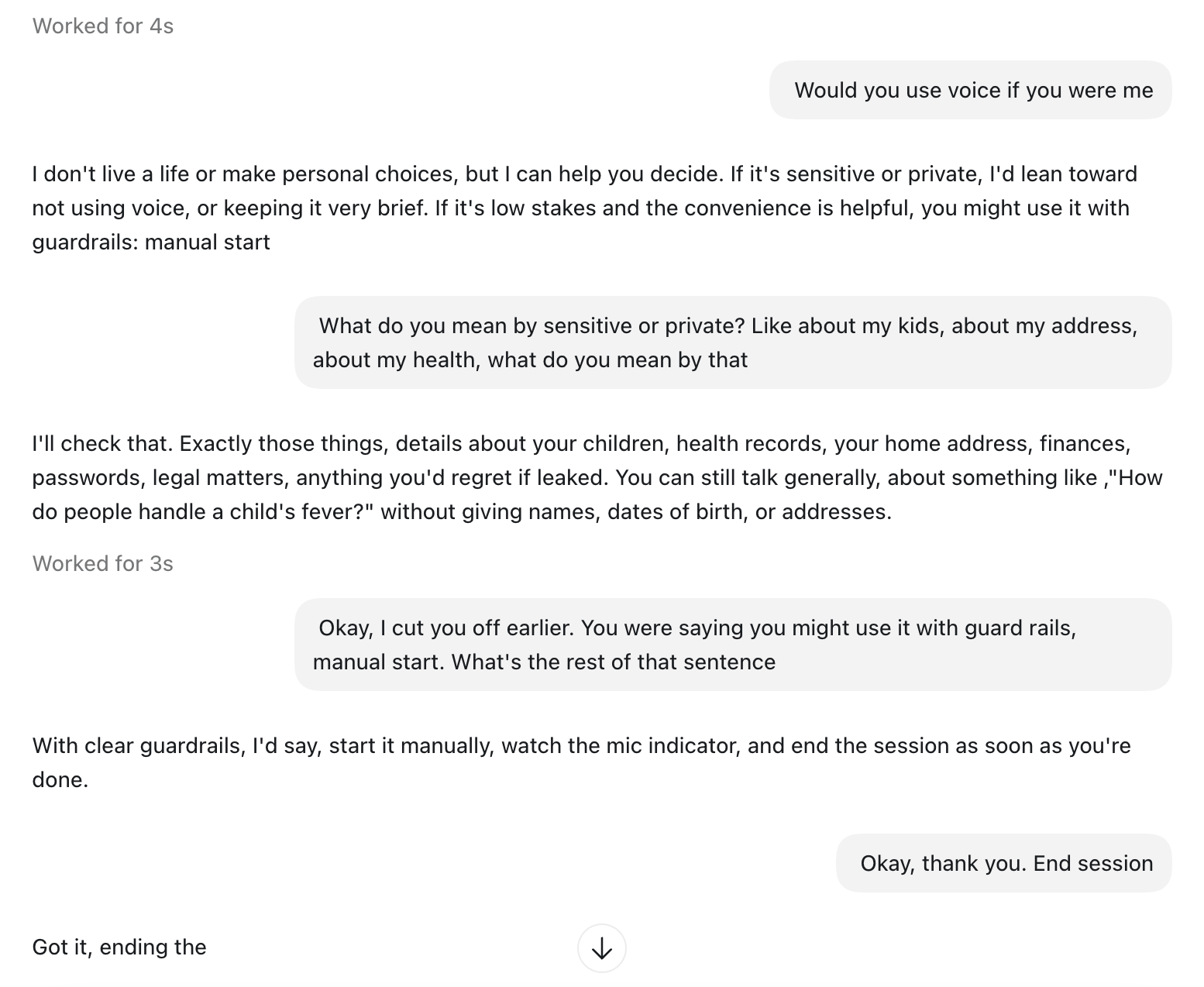
I’ll let you decide how comforting “not supposed to” is. The practical rule is simple: you start it with a tap, and you should be the one who ends it. Don’t leave a session running while the rest of your household wanders through.
What happens to your voice?
OpenAI told me that audio clips stick around for up to 30 days so you can resume conversations, and the company says it does not use your actual audio or video clips to train its models unless you choose to share them separately.
The transcript is a different matter. If you have “Improve the model for everyone” turned on, OpenAI may use transcripts of your voice conversations for training, depending on your plan and settings.
Check yours here:
ChatGPT → profile icon → Settings → Data Controls
Turn off Improve the model for everyone if you do not want your conversation transcripts used for training.
If you leave that setting on, make sure “Include your audio recordings” and “Include your video recordings” remain off unless you deliberately want to share those clips.
OpenAI says deleting a chat also schedules its associated audio and video for deletion within 30 days, although the company may retain some data longer for legal, safety, or security reasons. Archiving a chat does not delete it.
I still won’t dictate a bank password, discuss a confidential work deal, or treat a pleasant-sounding chatbot like a licensed therapist (let alone my best friend or spouse). Remember, a voice can feel warm, attentive, and human long before the machine behind it deserves that level of trust.
CHEAT SHEET RECAP: HOW TO TURN ON CHATGPT VOICE
WORKS ON: iPhone, Android, and ChatGPT.com. Both free and paid accounts get it, though free accounts use the lighter GPT-Live mini model.
Open the ChatGPT app, or go to ChatGPT.com.
Look at the message box where you normally type. On the right, you will see a small Voice icon that looks like a sound wave. Tap it. It’s NOT the microphone icon (which would make sense, but it’s not that). The microphone only turns what you say into typed text. The Voice button opens an actual conversation.
The first time you use Voice, ChatGPT asks for microphone permission and lets you choose a voice.
When the Voice screen opens, look for the small Live label at the top. That is how you know you have the new GPT-Live upgrade. No Live label? Update the app and check again later. OpenAI is still rolling it out.
Start talking. There is no wake word and no button to hold down.
When you finish, tap the X to end the session. While that session remains open, the microphone remains live and may hear other people in the room. You start it with a tap, and you should be the one who ends it.
🎯 TRY THIS: PUT VOICE ONE PRESS AWAY
If you have an iPhone 15 Pro or newer, map the Action Button to ChatGPT Voice. Then, the second a thought hits — in the car, on a walk, elbow-deep in dinner — you can press one button and start talking instead of opening your phone, finding the app, and losing the thought somewhere along the way.
Go to:
Settings → Action Button → Controls → ChatGPT → Start Voice Conversation
No Action Button? Add the ChatGPT Voice control to your iPhone’s Control Center or Lock Screen instead.
That tiny change is what turns Voice from a feature you forget exists into something you might actually use.
This is tip No. 1 in my upcoming guide. I’m testing 15 more genius insider tips like these, with the exact words to say, the settings to change, and the tricks that sound smart but fall apart in real life.
Paid subscribers get the whole thing first. Stay tuned!
Excellent overview of ChatGPT Voice and the privacy considerations around it. The practical tips about ending voice sessions and checking data settings are especially useful since many users overlook them.
For anyone who primarily needs accurate Voice to text transcription instead of a live AI conversation, VoiceToNotes.ai is a great option. It quickly converts meetings, interviews, lectures, and voice recordings into organized, editable notes, making it easy to capture ideas and improve productivity.
https://voicetonotes.ai/
Voice assistants and transcription tools serve different needs, and it's great to see both evolving so quickly. Thanks for sharing such a detailed guide!
Great article Jennifer! I have one I recently wrote that was for somebody that wanted to dive in just a tiny bit more too! https://www.freshfromcache.com/ai-tips-for-everyday-people/