

One More Thing 📲
What to expect from Apple on Monday, the Safari privacy settings you should turn on today, and that one smartphone feature that changed your life...

TGIF, Friends! I’ve been home just long enough this week to do a load of laundry, repack my suitcase, and remind the pets that I still live here. This weekend, I head out to the San Francisco Bay Area to cover two giant tech+life stories:
Monday, I’m at Apple Park in Cupertino for WWDC 2026 — the Siri overhaul, AI for everyone, the works. Tuesday, I’m in San Francisco for a GM event focused on electric vehicles, home energy, and a future where your car might keep your house running during a power outage. I’m excited for both.
🔮 My crystal ball predictions about Apple below ⬇️
Why do these two days matter so much? Like it or not, Apple still sets the agenda for the rest of the industry — features that show up on stage in Cupertino have a funny way of appearing everywhere else later. And vice versa. Features Android has had for years finally land on iPhone, then work better, remaining a constant source of fuel for ongoing Apple versus Android rivalries. (Our world would be so boring without it.)
As for GM, that’s a story about a lot more than cars. It’s about energy, power outages, rising utility bills, and how technology continues to reshape our biggest purchases.
What exactly do we expect to see on Monday? Let’s get into it:
Monday at Apple Park: Why it Matters so Much
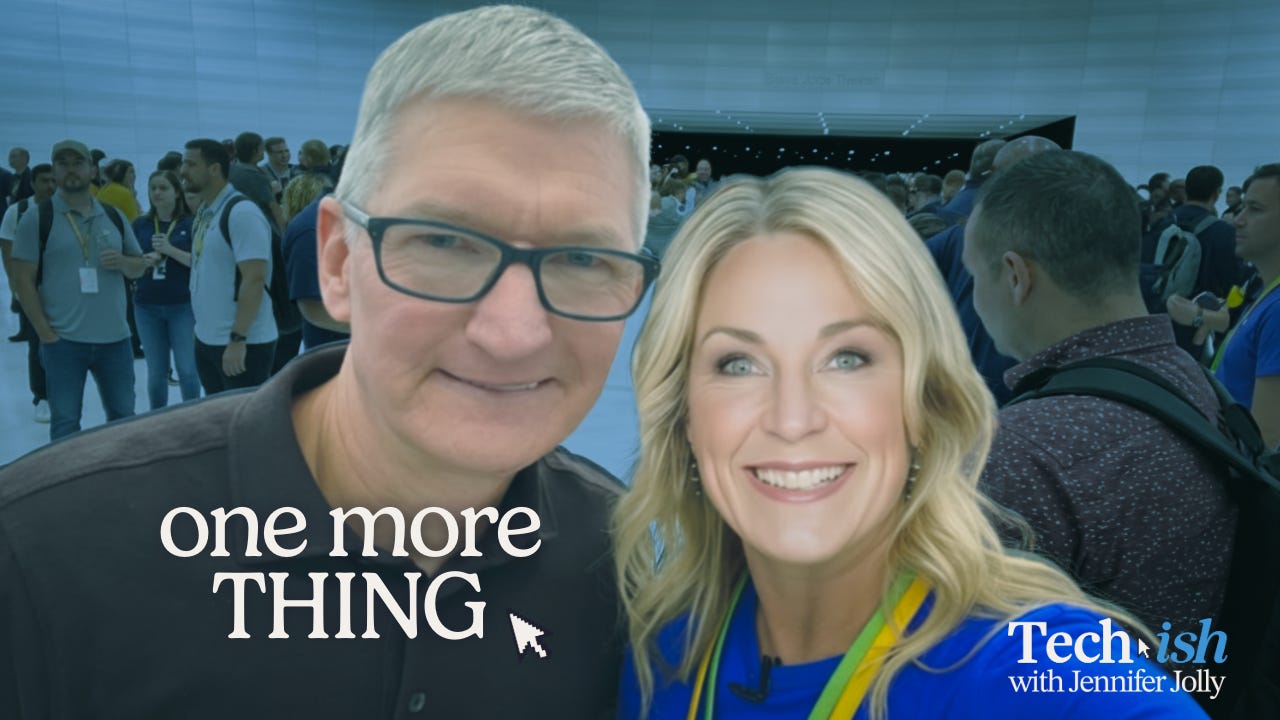
I head to San Jose Sunday night and walk into Apple Park first thing Monday morning for Apple’s Worldwide Developers Conference. The keynote starts at 10 a.m. Pacific (1 p.m. Eastern), and you can stream it live on Apple.com, in the Apple TV app, or on Apple’s YouTube channel.
This isn’t a normal WWDC. Here’s what I’m betting happens:
Tim Cook’s final keynote as CEO. Apple confirmed in April that Cook is handing the role to John Ternus, Apple’s hardware engineering chief, on September 1. Cook will stay on as Executive Chairman, but Monday could be his last big stage moment as the person running the company. After 15 years of “good morning” and “one more thing,” the man who built Apple into the most valuable company on earth is about to pass the torch. The whole event is themed around the transition — this year’s tagline, “All Systems Glow,” is a nod to the new Siri interface and probably Cook’s own send-off. There’s a little extra weight to this one, too: Apple just turned 50 on April 1. Monday isn’t just a keynote — it’s a milestone.
I was there at Steve Jobs last keynote, and I’m a little emotional about this one too. That sounds weird, but these moments mean a lot and I’m incredibly grateful to witness them first hand. I can’t wait to tell you all about it.
A Siri that actually works — finally. Bloomberg, the Wall Street Journal, and every Apple-watcher worth listening to is saying the same thing: Apple is rolling out the AI-powered Siri it promised at WWDC 2024 and then frustratingly delayed for two years. The good news? Apple delays things for good reasons — usually because they’re not up to Apple’s own standards. I’ve come to appreciate this about them, and I hope it pays off this time.
This version reportedly runs on a custom AI model developed with Google’s Gemini team (whoohoo, the kids are playing nice in the sandbox), lives in its own chatbot-style app, and will support actually-useful things like “Send a text to Mom that I’m running late,” or “Find the recipe I saved in Notes last week” — without responding “Here’s what I found on the web.”
See my #itscomplicated relationship with Siri HERE, plus ways to make “her” work better right now.
The new Siri unlocks more than your iPhone. This is the part I’m most interested in— Apple’s long-rumored smart home hub, video doorbell, and security camera (all with Face ID) are reportedly held up waiting for the new LLM-powered Siri to ship. So Monday isn’t just about your phone. It’s the green light for Apple’s full-on push into your kitchen, your living room, and your front door. Translation: this is Apple finally taking a real swing at Amazon Alexa and Google Nest, and the prompt to pony up your wallet. Sigh.
iOS 27 and the rest of the “27” lineup. macOS 27, iPadOS 27, watchOS 27, tvOS 27, visionOS 27 — all expected to integrate the new Siri and Apple Intelligence tools throughout. Rumored upgrades to Calendar, Health, Photos, Messages, and Wallet, plus an AI-powered keyboard with better autocorrect. Again, yay. No more autocorrect tipis typos. FAILS.
You might get to pick which AI runs your phone. Bloomberg reports Apple may let you choose between Gemini, ChatGPT, and Claude as the brain behind the new Siri. That sounds small, but it’s the kind of choice that’s going to matter the same way picking Chrome vs. Safari mattered ten years ago. ChatGPT is the most well-known. Claude has built a reputation for handling complex writing tasks better than the alternatives. Gemini ties into Google’s whole ecosystem. If this rumor pans out, you’ll be picking the personality, the privacy posture, and the politics of the AI that lives in your pocket.
No major hardware (probably). WWDC is a software show, so don’t expect new iPhones or Macs. But a refreshed HomePod Mini, an M5 Ultra Mac Studio, and possibly even a touchscreen MacBook are rumored — any of which could surprise us Monday. There’s also chatter about a special 50th-anniversary iMac Pro with the new M5 Max chip. If Apple’s ever going to do a “one more thing” moment, this might be the year.
WHY THIS MATTERS: What Apple shows Monday will define what 1+ billion iPhones do for the next year. If Siri actually works the way Apple’s been promising, it changes how everyone in your life interacts with their phone — your mom, your kids, your in-laws, all of them. And watching Tim Cook close the curtain on his era is going to be a moment, no matter how you feel about Apple.
I’ll be reporting live from the keynote on socials starting Monday morning. You can also read my coverage in USA Today, and follow along on Instagram, TikTok, and YouTube for live reactions. Subscribe now so you don’t miss next week’s full breakdown!
❤️ If today’s newsletter is useful, forward it to someone who’d benefit. That’s how Techish grows. Not a paid subscriber yet? That’s where the deep-dive pieces, podcast extras, and product testing live. [Subscribe HERE] ❤️
Make It Stop: End the Spam Calls For Good
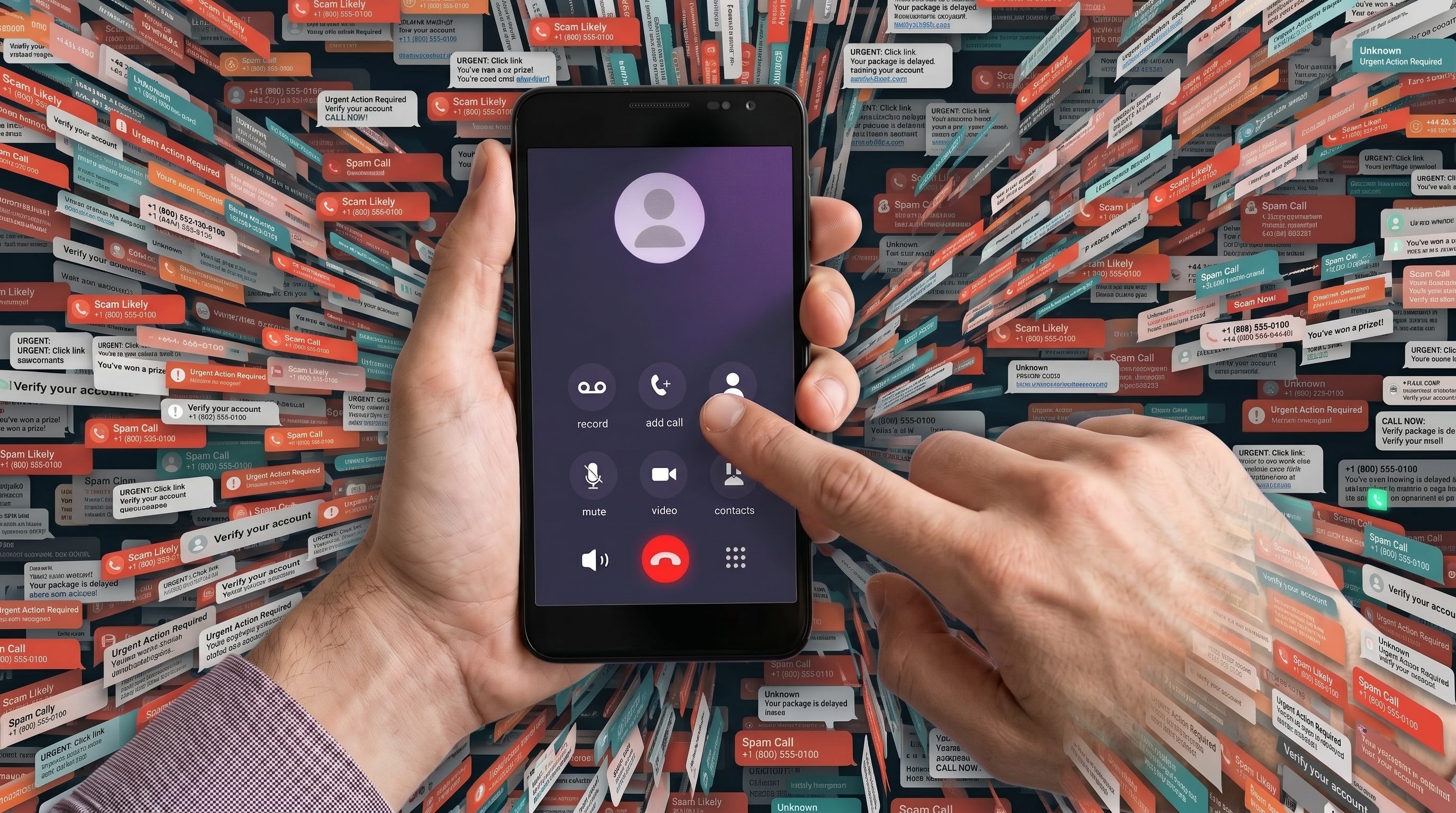
Meantime, there’s a bunch of other stuff to talk about this week — like making those infernal scam and spam calls go straight to hell.
My husband’s phone is the worst, and I’ve been side-eye commenting about it for several weeks now. I finally sat down last night and tweaked the settings on his iPhone to make it stop — for good.
Get the full step-by-step (with Android equivalents, carrier-level fixes, and some bonus tips to nuke the scammers) HERE. TL:DR Version:
iOS 26 has a feature called Ask Reason for Calling — turn it on first.
Settings → Apps → Phone → Screen Unknown Callers → Ask Reason for Calling.
Combine it with the Spam toggle under Call Filtering. Most people miss this one.
Don’t forget the carrier-level fix — Verizon Call Filter, T-Mobile Scam Shield, and AT&T ActiveArmor are all free and run before the call even reaches your phone.
All of the links and more info HERE.
Is Your Smartphone Listening to You?
Most people swear their phones are listening to them all. the. time. I feel that. Half the time, I’m barely thinking about something, and somehow an ad pops up for it on Facebook or during a random Google search. (I wrote about this exact creepy phenomenon back in 2020 — six years later, it’s only gotten worse.)
Apple kicked off a clever new ad campaign this week that gets to the heart of this oft-experienced digital dilemma, but even more, it reminded me to tell you to check your privacy settings.
The new ad’s premise: data trackers shown as people in chrome-colored suits sitting on your shoulder, peeking at your screen as you browse. It’s funny and accurate. Some websites have more than 100 trackers running on a single page, each one watching your every read, click, and buy. They talk to each other, too, which is how Facebook can show you ads for the hiking boots you Googled five minutes ago, even though you never told Facebook a thing about hiking.
So this campaign is Apple’s way of reminding us that Safari’s been blocking trackers since 2005, was the first major browser to block third-party cookies by default in 2019, and does a lot more out of the box than Google Chrome.
But … there are a few settings most of us don’t realize we need to turn on. Each one takes under a minute and shuts down a different kind of creepy:
STEP 1: Turn on Private Relay to hide your IP address and browsing from advertisers (and from Apple itself). This is the one that fights the "how did Instagram know I was just at that coffee shop?" problem.
Private Relay works like a VPN, but better — Apple can't see your browsing either. You need to be an iCloud+ subscriber, which most iPhone owners already are — and if you're not, the cheapest tier is $0.99 a month and gets you the exact same Private Relay protection as the $9.99 plan.
📲 Settings → tap your name at the top → iCloud → Private Relay → turn it on.
STEP 2: Block app tracking everywhere — not just in Safari — to stop the “I just talked about mascara and now every app is showing me makeup” problem.
With this turned on, every app on your phone gets an automatic no when it asks to track you. You stop seeing the pop-ups, too.
📲 Settings → Privacy & Security → Tracking → turn off “Allow Apps to Request to Track.”
STEP 3: Set a different default search engine for Private Browsing — let me take a step back and explain why I keep telling my Mom to use Google and then get into the fix:
Google searches are better for most things. This might be annoying to admit, but it’s true:
Maps & local results — Google integrates Maps directly, knows your area, surfaces hours, reviews, and directions.
Shopping & product info — Google’s product search is genuinely better, with price comparisons, reviews, and inventory.
News & recency — Google indexes news faster and prioritizes recent results better than others.
YouTube, Google Docs, Gmail integration — Google search results pull in your own stuff (your past emails, your calendar events, your saved content).
Knowledge panels & instant answers — Google’s “What’s the weather” / “What time is it in Tokyo” / “How tall is the Eiffel Tower” results are still way more refined.
The trade-off: Google is better at finding things, but it also remembers everything you search for, tied to your account and IP address.
THE FIX: For the searches you don’t want sitting in your Google history forever. Symptoms, side effects, that thing your friend mentioned, and those awkward “what cream stops the…” questions. Keep Google for everyday searches, switch to DuckDuckGo (or another privacy-focused option) for Private Browsing.
📲 Safari → Settings → Search → pick a different default for Private Browsing.
STEP 4: Lock your Private Browsing tabs with Face ID — for when you hand your phone to your child or leave it sitting on the kitchen counter and someone glances at it. Now your private tabs require you to be the one looking.
📲 Open Private Browsing in Safari → follow the prompt to require Face ID or Touch ID to view it.
Again, not perfect, but it’s better than leaving it all to chance. Unless you love the hyper-personalized ads. 🤷♀️ In that case, tap on keyboard warriors. Questions? Reach out directly, and I answer every single one of them!
The Smartphone Feature That Just Might Change Your Life
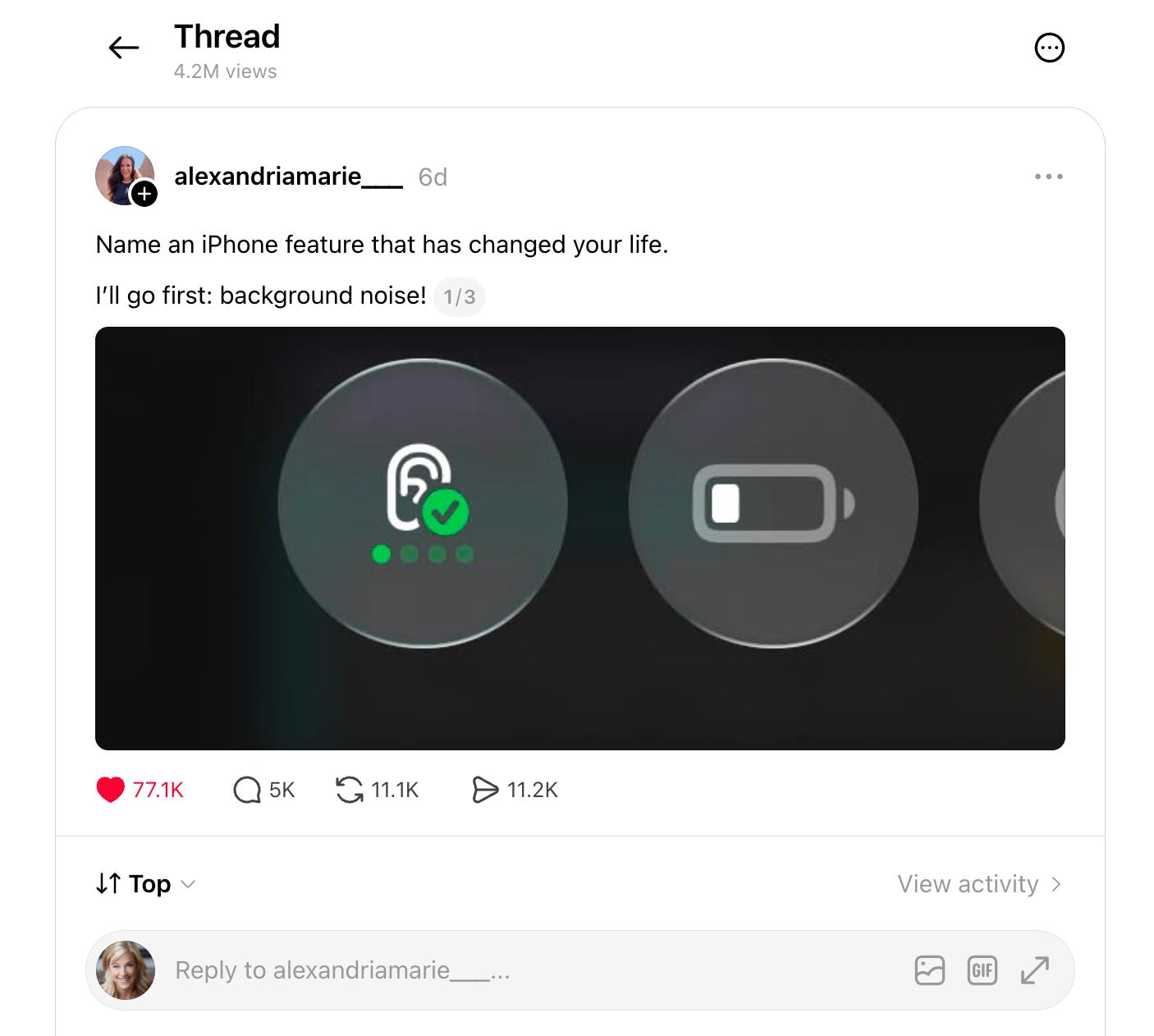
A Threads post by @alexandriamarie___ popped off this week. The prompt: “Name an iPhone feature that has changed your life. I’ll go first: background noise!” Seventy-seven thousand likes and five thousand replies later, the comments are a goldmine of hidden iPhone features. A few worth stealing this weekend:
Background Sounds. Alexandria’s pick, and the one that started the whole thread. Your iPhone has a built-in white noise machine buried in Accessibility settings — ocean, rain, stream, fire, even a “busy café” setting called Babble. Layer it under a podcast, run it while you sleep, use it to focus while you work. Free, no app needed.
Settings → Accessibility → Audio & Visual → Background Sounds.
Guided Access. The top reply (32,000 likes) was about this one — and it’s a parent’s dream. Lock your iPhone to a single app before you hand it over. Your kid stays in the game/video/app you opened, can’t text your boss, can’t open photos, can’t accidentally Venmo someone $500. Triple-click the side button to lock. Triple-click to unlock.
Settings → Accessibility → Guided Access → turn it on.
Back Tap. Not from the thread, but the one I’d add: double- or triple-tap the back of your iPhone to launch any action you want — flashlight, screenshot, mute everything, open a shortcut. Once you set it up, you can’t go back.
Settings → Accessibility → Touch → Back Tap.
Live Voicemail. Watch a real-time transcript of someone’s voicemail while they’re leaving it. If it’s important, pick up mid-message. If it’s a scam, let them keep talking to the void.
Settings → Apps → Phone → Live Voicemail.
What’s your life-changing feature? Hit comment — the best ones get posted here next week!
That wraps up another great week here at Techish. I hope you have a fabulous weekend, and don’t forget to share your favorite tips, tricks, or just stop by to chat.
Also? What questions do you have for me to take to Apple on Monday? Be sure to let me know!
More soon — XO, Jenn